My employer told me to sign up for the 401(k), but there's no way I could run that far.
Cashflow Companion helps you answer the most important financial question: "What can I actually spend right now?" If you've ever been surprised by an overdraft from a forgotten auto-pay bill, you know how important this question is. This guide walks you through every feature of the app so you can take full control of your finances.
The Home Screen: Your Financial Command Center
When you open Cashflow Companion, you'll see the Home screen. This is your financial command center, showing everything you need at a glance.
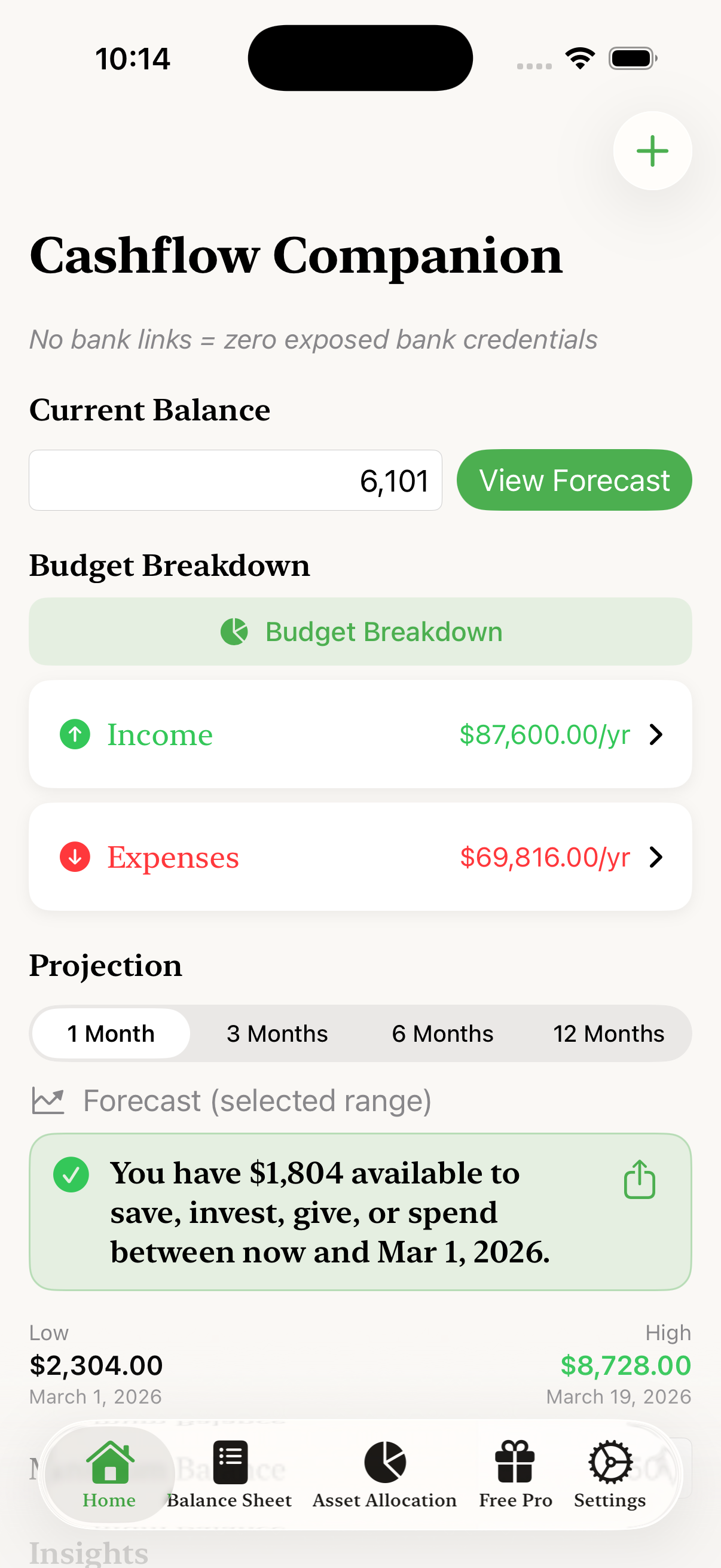
The Home screen shows your current balance, income, expenses, and cashflow projection
Current Balance
At the top, enter your current checking account balance. This is the starting point for all calculations. Tap the field to update it whenever you check your bank balance.
Income and Expenses Summary
Below your balance, you'll see your total annual income and expenses. Tap either one to see the full list of items and add new ones. The app uses these recurring items to project your future cashflow.
The Forecast
The Forecast section is where the magic happens. Based on your current balance, upcoming income, and upcoming expenses, the app forecasts your available funds over time. Tap "View Forecast" to see the full forecast.
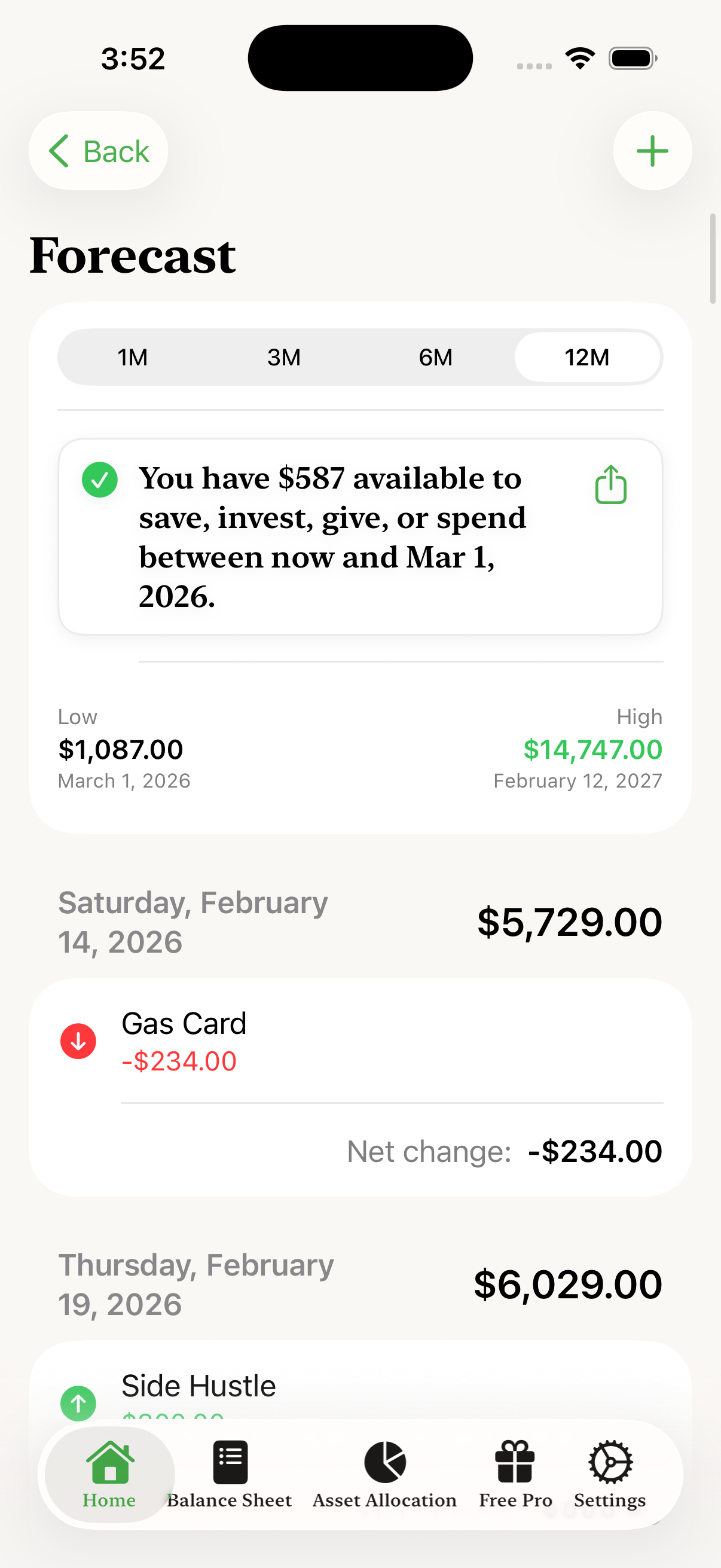
The Forecast shows your projected balance and breaks down exactly what's happening on any given day
Key features of the Forecast:
- Time range selector: View projections for 1 month, 3 months, 6 months, or 12 months
- Minimum balance warning: If your projected balance will drop below your minimum threshold, the app shows you exactly how much you need to add to stay above it
- Low and High points: See exactly when your balance will be at its lowest and highest, with specific dates and amounts
- Daily breakdown: Scroll through the days to see exactly which income and expenses are scheduled, with a net change calculation for each day
- Temporarily exclude items: Swipe left on any item to remove it from the calculation until you tap the Forecast button again—useful for "what if" scenarios
- Share button: Share your forecast with a spouse
Adding Income and Expenses
To make accurate projections, you need to add your recurring income and expenses. Tap the "+" button in the top right corner of the Home screen, or tap on the Income or Expenses rows to see your lists.
For each item, you can set:
- Name: A descriptive name like "Water bill" or "Paycheck"
- Amount: The dollar amount
- Type: Tap to select whether it's an expense or income
- First Occurrence: When this item first occurs
- Frequency: How often it repeats (weekly, every X days, monthly, yearly, etc.)
- Advanced options: Handle edge cases like "closest weekday" for bills that would fall on a weekend by rule, but will actually be processed on a weekday
The app also tracks Amount History for each item, so you can see how expenses like utility bills have changed over time.
The Balance Sheet: Track Your Net Worth
Tap "Balance Sheet" in the bottom navigation to access net worth tracking. This section lets you track all your assets and liabilities to calculate your total net worth.
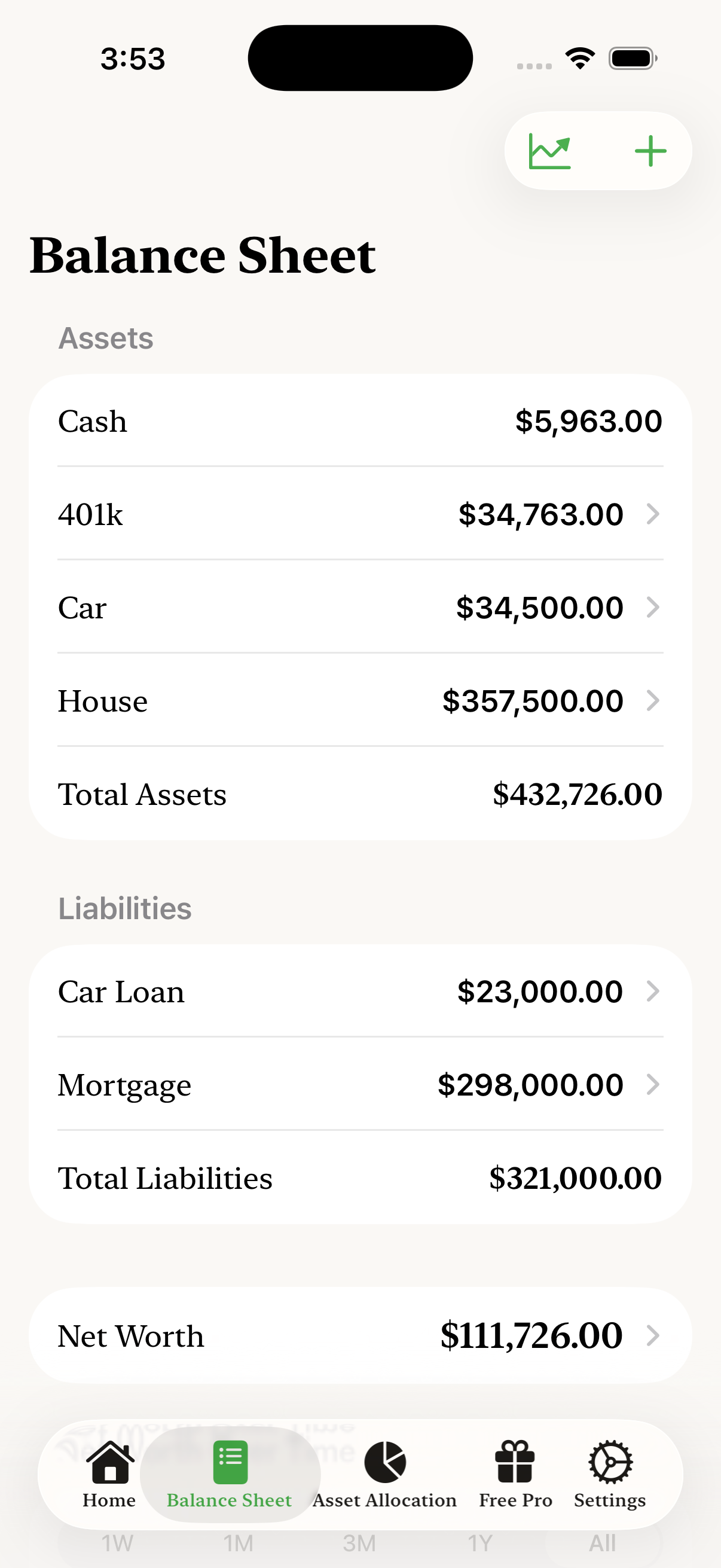
Track all your assets in one place
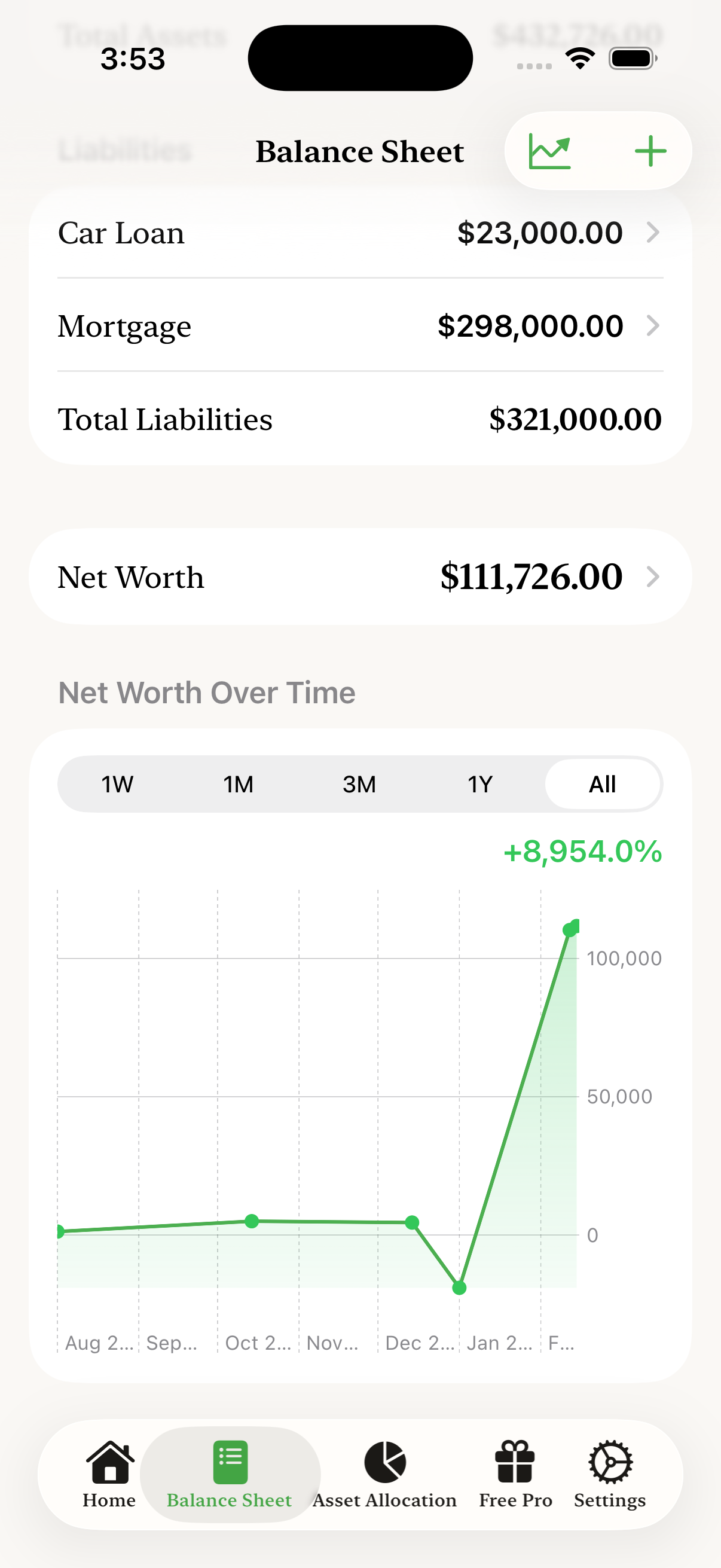
See liabilities, net worth, and trends over time
Assets
Add all your assets: bank accounts, retirement accounts (401k, IRA), investments, real estate, vehicles, and anything else of value. Each asset can be categorized for the asset allocation view.
Liabilities
Add your debts: mortgage, car loans, student loans, and other long-term debts. The app subtracts these from your assets to calculate net worth.
Net Worth Over Time
The chart at the bottom shows how your net worth has changed over time. This is one of the most motivating features. Watching your net worth trend upward over months and years shows that your financial habits are working. Learn more about why tracking trends over time matters and remember that net worth is a tool, not a trophy.
Asset Allocation: See Your Portfolio Balance
Tap "Asset Allocation" in the bottom navigation to see how your wealth is distributed across different asset classes.
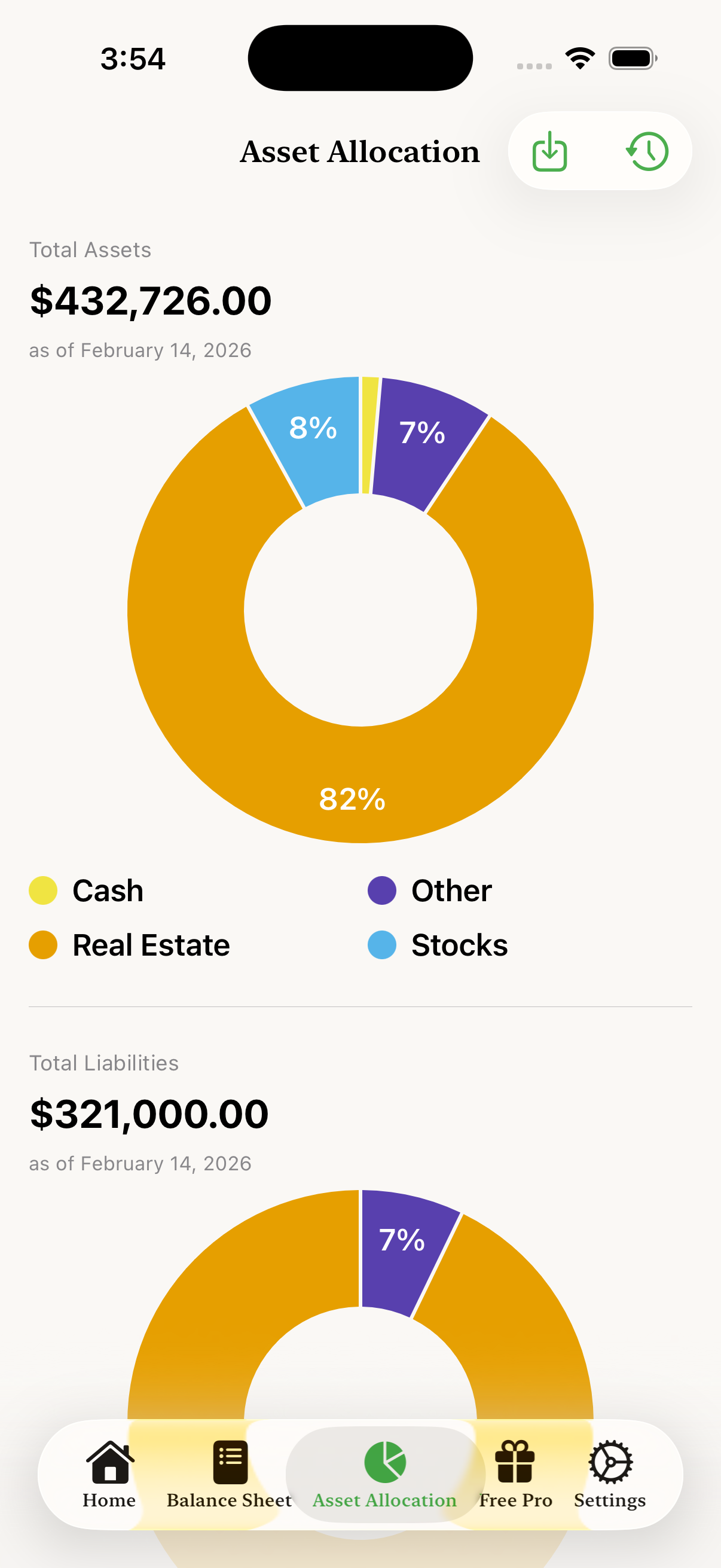
Visualize how your assets are distributed across categories
The pie chart shows the percentage breakdown of your total assets by category:
- Stocks: Brokerage accounts, retirement accounts invested in stocks
- Real Estate: Home equity, rental properties, REITs
- Cash: Checking, savings, money market accounts
- Vehicles: Cars, trucks, motorcycles
- Private Equity: Business ownership, private investments
Don't see a category that fits? You can type any custom asset class you'd like. The app will use whatever category name you enter and group assets accordingly in the allocation view.
This view helps you understand if your portfolio is balanced according to your goals. Too much in one category? You might want to diversify.
Settings and Data Management
Tap "Settings" to access app settings, subscription management, and data options.
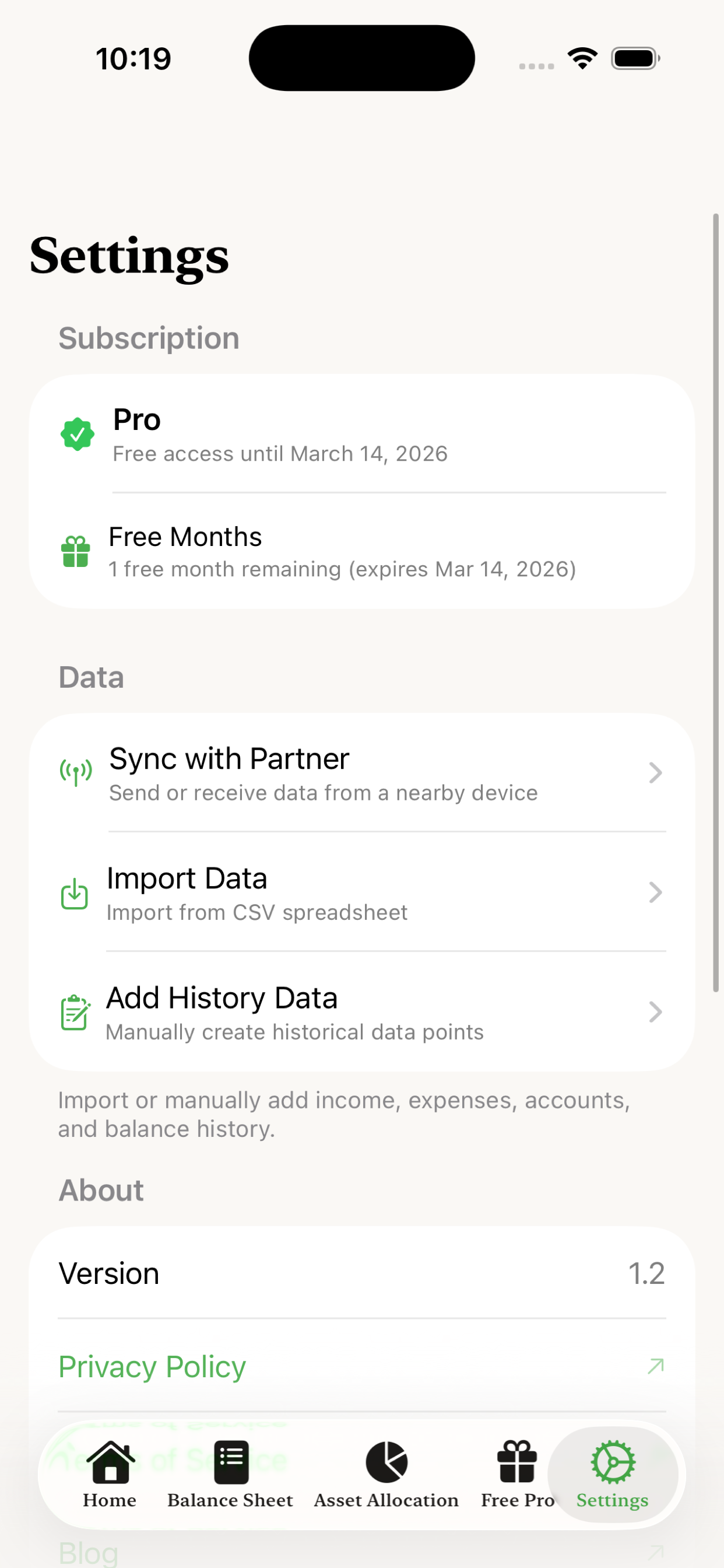
Import your existing data from spreadsheets
Import Data
If you're coming from a spreadsheet, you can import your income, expenses, and accounts from a CSV file. This saves time if you already have your financial data organized elsewhere. See our detailed guide on how to import data from CSV files, including downloadable templates.
Privacy
Remember: all your data stays on your device. There's no account to create, no bank to connect, and no data uploaded to servers. Your financial information is yours alone.
Getting Started: Your First 10 Minutes
Here's the fastest way to get value from Cashflow Companion:
- Enter your current checking balance on the Home screen
- Add your primary income (salary, freelance income, etc.)
- Add your major recurring expenses: rent/mortgage, utilities, insurance, subscriptions (see ten ways to lower your expenses)
- Set your minimum balance to create a safety buffer
- Check the projection to see your available funds
That's it! In about 10 minutes, you'll know exactly what you can afford to save, spend, invest, or give. From there, you can add more detail over time: track net worth, add all your accounts, and watch your trends develop.
Tips for Success
- Update weekly: Take 2 minutes each week to update your checking balance and record any changes
- Review monthly: Once a month, update your asset and liability values to keep net worth tracking accurate
- Don't over-complicate: You don't need to track every penny. Focus on the big items that actually move the needle
- Use the projection before big purchases: Before any significant expense, check how it affects your projected balance
- Celebrate progress: Watch your net worth trend. Even small positive movement is progress worth acknowledging
Cashflow Companion is designed to give you clarity without complexity. You don't need to be a financial expert or spend hours on budgeting. Just a few minutes of attention keeps you in control of your money.
You Don't Need to Track Every Purchase
A common misconception about financial tracking is that you need to log every $2 coffee and $15 lunch. You don't. That level of detail is exhausting and usually unnecessary.
Here's the key insight: your current bank balance already reflects all those small purchases. When you enter your checking balance in Cashflow Companion, all that discretionary spending is already accounted for. The app projects forward from where you actually are, not from some theoretical budget.
But what if you want to understand your discretionary spending patterns over time? There's a simple solution: use a dedicated credit card for discretionary spending, then add that card's monthly payment as a recurring expense in Cashflow Companion.
This approach gives you several benefits:
- Your credit card statement categorizes purchases for you
- You can see discretionary spending trends in the app's Amount History
- You maintain the discipline of treating credit cards like debit cards
- You don't spend hours logging individual transactions
For more on this strategy, see our post on using credit cards as a spending tracking tool.
Focus your tracking energy on the things that matter: recurring bills, income, and building net worth. Let the small stuff take care of itself through your bank balance.